
Illustrations by Igor Bastidas
Guide
Netflix Parental Controls: the Ultimate Guide to All the Features
We’re here to help.
By Megan Sayers
March 23, 2022
Hello and welcome to your parental controls tip sheet. Netflix made these tools so you can decide what’s appropriate for your kids — and we made them easy to customize, because we know every family is different.
Here’s a quick list of what you can do:
Set up a Kids profile with general restrictions based on specific maturity ratings.
Choose maturity ratings or block specific titles.
Lock your profile (and other profiles on your account) with a PIN, which helps prevent your kid from disabling or overriding your parental controls. (They’re so smart these days!)

A Netflix Kids profile (intended for ages 12 and under) will only play TV shows and movies carefully selected for kids, and it won’t allow access to account settings or Netflix mobile games. All Kids profiles have an icon that says “kids” so you can easily identify them.
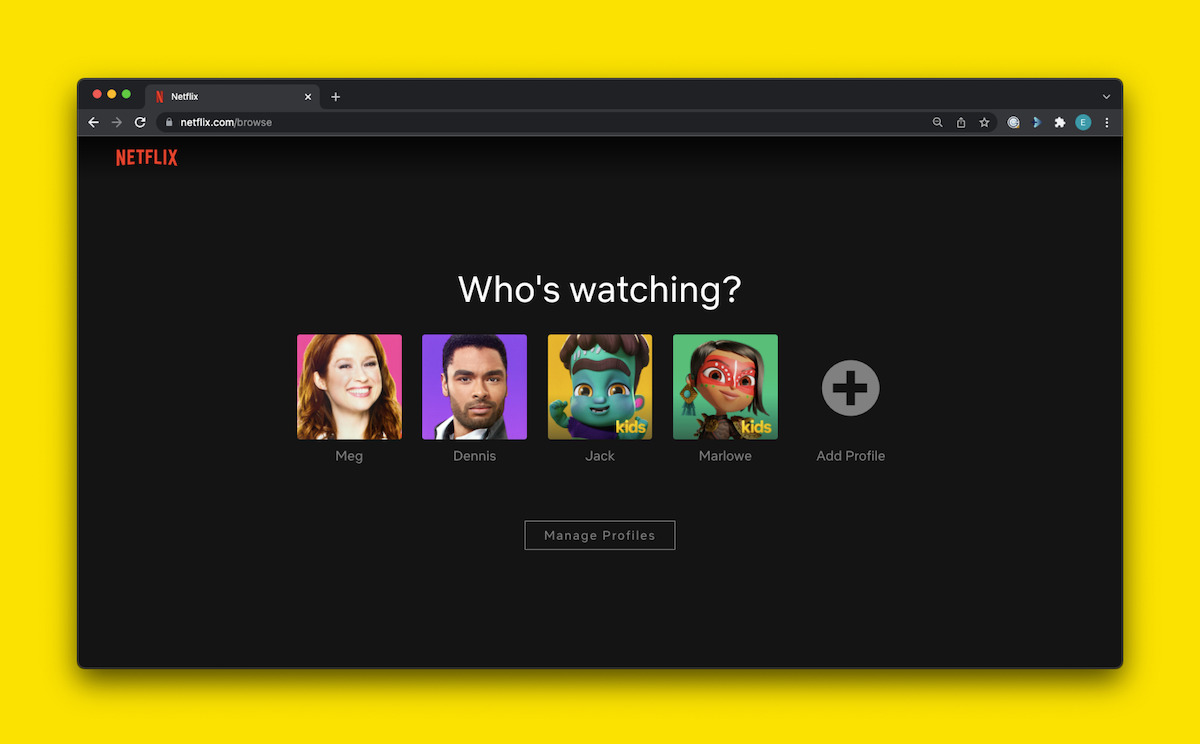
To set up a Netflix profile for each member of your family, follow these steps:
Go to Manage Profiles and select Add Profile.
Type the name of the family member the profile is for. To use the Netflix Kids experience, select Kids.
Select Continue, and the new profile will show up on your account.
If you want to switch an existing profile on your account to the Netflix Kids experience, follow these steps:
Go to Manage Profiles and click on the profile.
Under Maturity Settings, click Edit, and enter your account password when prompted.
Check the box to display the Netflix Kids experience, then click Save.

Now that your kids have their own Netflix profiles, you can begin to customize their viewing experiences by restricting content according to its maturity rating. Note: These settings are only available from a web browser.
A rating is a letter and/or number that describes a specific title’s age appropriateness — for example, “PG-13” and “R” in the United States. Note that different countries use different ratings systems; for a guide to ratings in your country, click here.
Netflix sets ratings by the frequency and impact of mature content in a movie or series, such as the amount of violence, sex, adult language, nudity or substance use that may be present. By setting rating restrictions, you can make your child’s Netflix profile automatically filter out titles above a certain rating. Here’s how to do it:
Go to Manage Profiles and click on your child’s profile.
Under Maturity Settings, click Edit, and enter your account password when prompted.
Choose the maximum rating that you’d like to appear on your child’s profile.
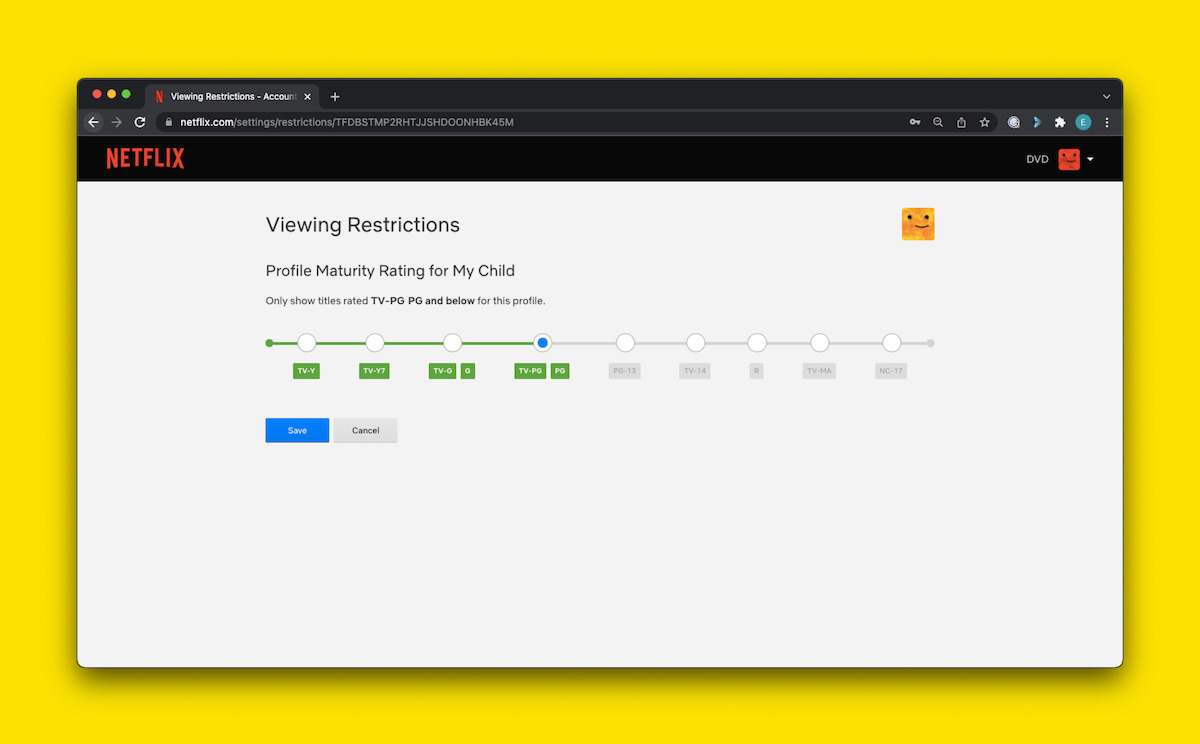
Feel free to customize this for each child’s profile. For example, you might choose TV-Y for your preschooler’s profile, PG for your middle schooler’s profile and TV-14 for your teenager’s profile. The choice — and power — are all yours.
Note that if the “Kids Profile” box is checked, Netflix will only display TV series and movies rated for ages 12 and under. (For the US, this means a maximum rating of PG.) If you want the profile’s maximum maturity rating to be higher than that, leave this box unchecked.
What if there’s a specific TV series or movie that you don’t want your child watching, even if the maturity rating is within the allowed age range? Maybe it’s something you’ve simply watched too many times (looking at you, CoComelon) or a series like Our Planet — beautiful and educational, but it has that traumatic flamingo moment.
To give you the power to make that happen, Netflix parental controls allow you to manually block specific movies or series from your child’s profile:
Go to Manage Profiles and click on your child’s profile.
Under Maturity Settings, click Edit, and enter your account password when prompted.
In the box under Title Restrictions, type the name of the show or movie, click on the title when it appears, then click Save.
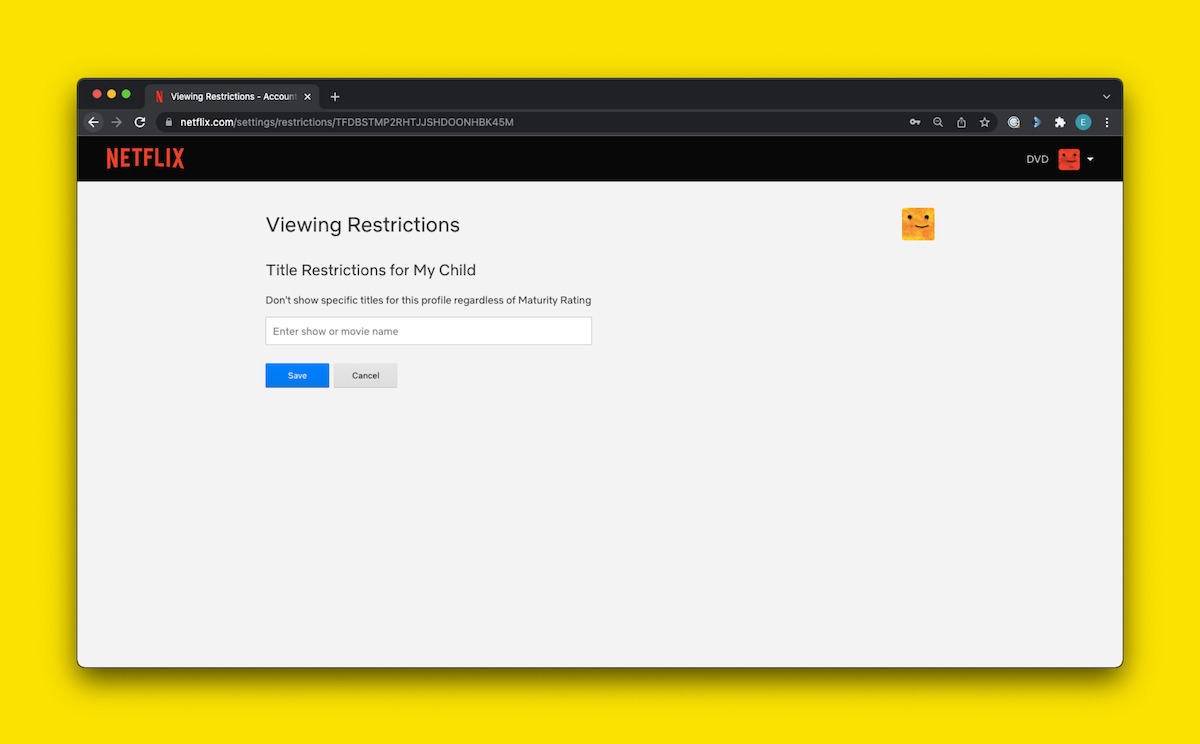
Keep in mind that this will only block the title from the specific profile you’re editing. If you have more than one kid and want to block the same title from each of them, you’ll need to follow these steps for each of their profiles.
Just as important as adding parental controls is making sure your kid can’t disable them when you’re not looking. Not that they, you know, would… but it never hurts to remove the temptation. You might have found this page by searching “how to set parental controls on Netflix”; it’s worth remembering that your kid could just as easily search for how to turn them off. To preempt any of that mischief, you’ll want to lock your settings with a PIN.
Start by creating a Profile Lock PIN for your Netflix profile and any other profile you don’t want your kid accessing, such as your partner’s or an older sibling’s.
From a web browser, go to Your Account and scroll down to Profile & Parental Controls.
Click the drop-down arrow next to your main account profile, and next to Profile Lock, click Change and enter your Netflix password.
Check the box to require a PIN to access this profile, then set your four-digit PIN. Naturally, you’ll want to choose one your kid won’t be able to guess.
Check the box to require a PIN to add new profiles. (Note that this option is only available after adding a Profile Lock PIN to the main profile on your account, which is the first one in the list.)
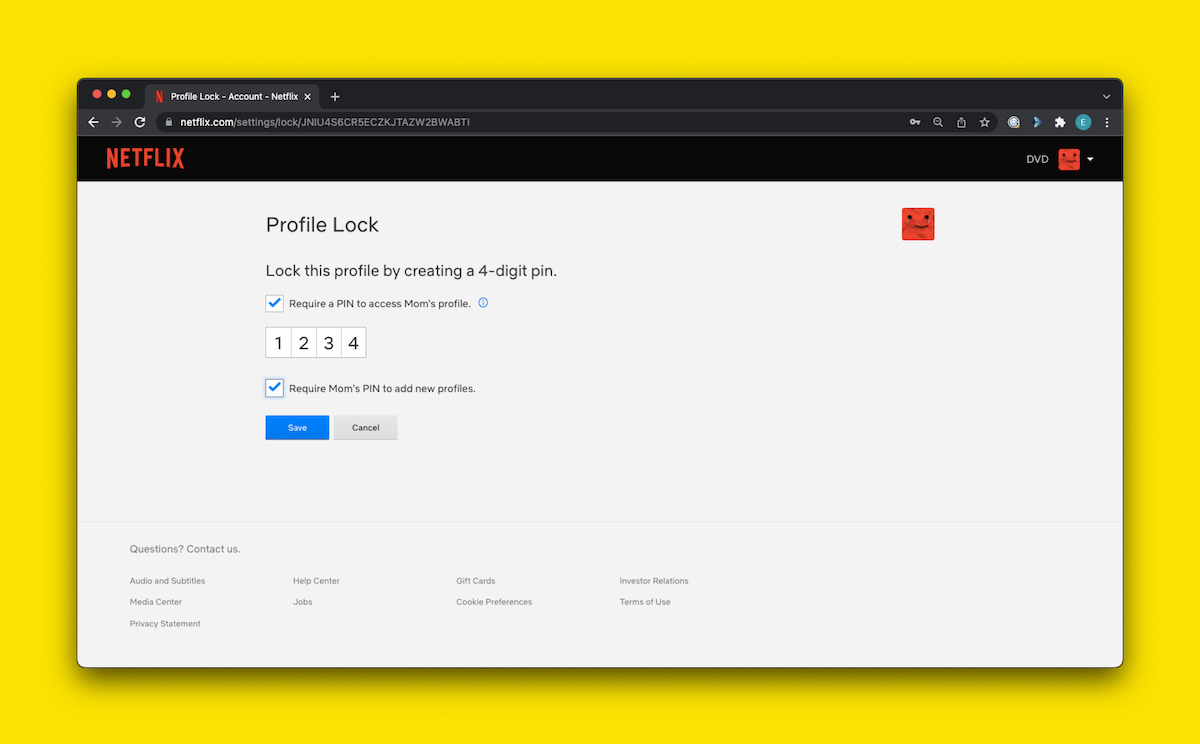
That last step is extra important! If you don’t check the box to require a PIN to add new profiles, then a particularly crafty and motivated kid could theoretically get around your parental controls by creating a new profile. They could then delete it once they’re done watching Netflix. Requiring a PIN to add new profiles to your account will make that impossible.

This might seem obvious, but don’t share your Netflix password with your kids if you don’t want them to be able to circumvent your parental controls. Anyone who knows your Netflix password can change your account settings!
If your child knows your current password, you can change it by going to this page. Leave the box checked to require all devices to sign back in with the new password. Be careful not to check “Remember Me” when logging into Netflix, and don’t allow your web browser or mobile device to save your new password, either.
That concludes our guide to setting up and using parental controls on Netflix! We hope these tools empower you to make the right choices for your family and allow you to rest a tiny bit easier. And if you’re interested in being part of a cool community of parents, join Netflix Family on Instagram, Facebook, Twitter and Pinterest.